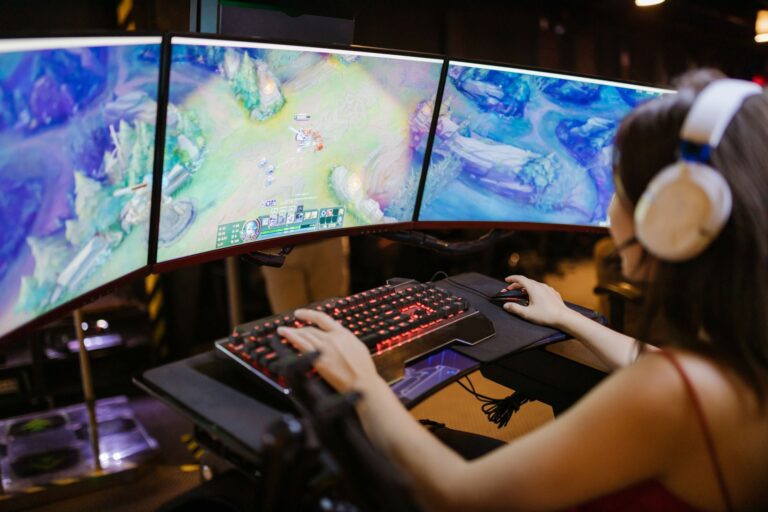

At its core, evenly spaced delivery of every rendered frame to your display keeps motion smooth even when the per-second count holds steady. A 60 FPS game with uneven timing feels choppy, while a steady 58 FPS experience can feel silkier because the gap between frames rarely shifts. That hidden timing layer between your GPU and the panel is where stutter lives, and it explains why a strong benchmark number can still produce a juddery screen.
This guide explains frame pacing for PC builders chasing fluid gameplay, walking through delivery basics, how timing separates from raw FPS, common micro-stutter causes, V-Sync and VRR solutions, and practical fixes for jittery screens.
The Basics of Frame Delivery to Your Display
Every frame your GPU finishes carries an implicit timestamp, metadata that signals when the frame should appear. The display refreshes at a fixed cadence, typically 60, 120, or 144 times each second, and each cycle can only show the frame most recently submitted before it started. A frame that arrives late gets held, and you see the previous image instead of fresh motion.
Smoothness depends on how steady that submission rhythm stays. Two systems that both average 60 FPS can feel completely different: one keeps frames landing at 16.67 ms apart with almost no variance, while the other swings between 12 ms and 22 ms, producing visible hitching even though the average looks identical. The display’s refresh rate sets the ceiling, but pacing decides what the floor looks like.
Why Timing Matters More Than Total Count
Your eyes notice irregular motion far more than missing frames at a high rate. A held frame that arrives a few milliseconds late reads as a judder, a brief skip, or a stutter, because your visual system expects motion to advance at a steady tempo. Intervals that stay consistent make even modest frame rates feel fluid; intervals that wobble make even triple-digit FPS feel broken.
That principle shows up everywhere from console ports to high-end PC builds. A racing game locked at 60 FPS with tight pacing feels more responsive than the same game hovering between 90 and 120 FPS with wild swings, because predictable timing lets your brain trust what it sees on screen.
How Frame Pacing Differs From Raw Frame Rate
Average FPS counts how many frames your system produces per second, while frame pacing measures the gap between each consecutive frame. One is a throughput number, the other a timing number, and conflating them is the most common mistake when reading benchmark results. A 60 FPS average can hide a worst-case frame time of 35 ms, more than two full refresh cycles, even though the headline figure looks fine.
Frame time graphs make the difference visible. A flat line near 16.67 ms means rock-steady pacing at 60 FPS, while a graph with sharp spikes shows exactly where stutter originates. Two systems with the same average can produce wildly different graphs, and only the graph tells you what your eyes will experience.
Why Averages Hide the Worst Moments
1% and 0.1% low metrics exist because averages lie about pacing. The 1% low shows the worst frame time during the slowest 1% of the session, while 0.1% low catches the truly rare hitches. A game that averages 120 FPS but drops to 40 FPS during combat will feel much worse than one that holds a flat 90 FPS, and the low metrics expose that gap while the average stays cheerfully high.
| Metric | What It Measures | What It Reveals |
|---|---|---|
| Average FPS | Total frames divided by elapsed seconds | Raw GPU throughput |
| Frame time (ms) | Time between consecutive frames | Timing variance and spikes |
| 1% low | Worst frame time during the slowest 1% | Visible hitches under load |
| 0.1% low | Worst frame time during the slowest 0.1% | Rare but jarring stutter events |
Frame pacing is the study of that frame-time column. When frame times cluster tightly around a target value, the game feels smooth. When they spread out, every spike becomes a moment your brain registers as broken motion.
What Causes Uneven Frame Pacing and Micro-Stutter
Uneven timing usually starts when the CPU and GPU fall out of sync. The CPU prepares draw calls, the GPU renders them, and a small mismatch between those pipelines produces alternating fast and slow frames, a classic micro-stutter pattern. One frame finishes early because the GPU was waiting; the next finishes late because both sides were busy at once.
Engine design choices make the problem worse. Variable rate shading, async compute, and asset streaming all introduce background work that lands on random frames, spiking frame times unpredictably. A streaming system that loads textures mid-frame can add 8–12 ms to a single frame, which the average FPS smooths over but your eyes absolutely notice.
Driver and System-Level Interruptions
Driver-level scheduling adds another layer of timing noise. The graphics driver decides when each frame enters the present queue, and a poorly tuned scheduler can batch two frames into one submission, causing a long gap followed by a short one. Background processes compete for the same resources, thermal throttling slows silicon under sustained load, and power limits on laptops cap performance the moment the chassis gets warm.
Fullscreen optimizations in Windows can also shift frame submission timing. A game running in borderless windowed mode may sync to the desktop compositor, adding 1–2 ms of jitter compared to exclusive fullscreen. None of these factors shows up in the average FPS number, yet each one bends the timing graph in ways you can feel.
How V-Sync and VRR Technologies Address Timing
V-Sync locks the render output to the display’s refresh rate, which eliminates screen tearing but introduces its own timing cost. A frame that finishes early waits for the next refresh cycle, adding input lag. A frame that finishes late causes the previous frame to be shown again, which reads as stutter, the exact problem pacing is meant to prevent. V-Sync trades one timing problem for another.
Variable Refresh Rate (VRR) technologies, including NVIDIA G-Sync, AMD FreeSync, and the open VESA Adaptive-Sync standard, attack the issue from a different angle. Instead of forcing the GPU to match a fixed display cadence, the display adjusts its refresh window to fit whichever frame arrives next. The GPU no longer waits, the display no longer repeats, and the gap between frames stays small.
| Technology | How It Handles Timing | Trade-Off |
|---|---|---|
| V-Sync | Locks GPU output to fixed refresh rate | Adds latency, repeats frames on misses |
| G-Sync (NVIDIA) | Display adapts to GPU frame delivery | Requires certified G-Sync module |
| FreeSync (AMD) | Open-standard adaptive sync over DisplayPort/HDMI | Variable quality across monitor tiers |
| VESA Adaptive-Sync | Underlying standard for FreeSync-tier displays | Range and behavior vary by panel |
VRR reduces the punishment for frame rate fluctuation but does not fix upstream timing issues. A game that swings between 45 and 90 FPS will still feel inconsistent on a VRR display, because the pacing between those frames is uneven even though no tearing appears. Frame caps placed slightly under the panel’s peak refresh rate often stabilize timing further by keeping the GPU in a predictable operating zone.
Set a frame cap roughly 3–5 FPS below your monitor’s peak refresh rate. That small headroom keeps VRR engaged while preventing the GPU from spiking into territories that break timing consistency.
Diagnosing and Fixing Bad Frame Pacing on Your System
Start by recording a capture session with an overlay tool that logs per-frame timestamps in milliseconds. MSI Afterburner paired with RivaTuner Statistics Server, CapFrameX, and Microsoft’s PresentMon all produce frame-time logs you can graph. Run the tool during a typical gameplay session, then load the log into a visualizer and look for spikes or clustered slow frames rather than the average number.
High variance or grouped spikes in the graph signal a pacing problem, not a throughput problem. Throughput issues show as a uniformly slow line; pacing issues show as a mostly fast line with sudden cliffs. That shape is the diagnostic fingerprint you’re hunting.
First-Line Fixes Worth Trying
- Cap your frame rate: Use the in-game limiter, NVIDIA Inspector, or Radeon Software to lock FPS slightly below your refresh rate. Removing the chase for maximum frames often improves pacing immediately.
- Clean-install GPU drivers: Use DDU (Display Driver Uninstaller) in safe mode, then install the latest stable driver. Stale or corrupt driver installs cause timing anomalies that clean wipes resolve.
- Disable fullscreen optimizations: Right-click the game executable, choose Properties, and toggle off fullscreen optimizations in the Compatibility tab. This forces exclusive fullscreen behavior on Windows 10 and 11.
- Lower CPU-heavy settings first: Draw distance, shadow cascades, and AI simulation density hit the CPU harder than the GPU. Reducing these often smooths pacing more than dropping resolution does.
- Close background processes: Browsers, Discord hardware acceleration, and RGB software all steal CPU time. Trimming them tightens frame timing.
When those steps don’t help, the issue often sits in the engine itself. Game-specific patches, mod fixes, or community frame-pacing mods (popular in older Bethesda and CryEngine titles) address timing logic the developer never shipped correctly. Tracking the game’s subreddit or forum for “pacing fix” threads usually surfaces a known workaround.
How Developers Build Consistent Frame Delivery
Modern graphics APIs expose frame pacing tools that let engines submit work on a predictable schedule. DirectX 12’s Present Wait API gives developers fine control over how long a frame waits in the queue, while the Android it API, originally built for mobile, helps games maintain consistent timing across variable-refresh-rate displays. These aren’t optional extras; they are the plumbing that turns “renders fast” into “feels smooth.”
Profiling during optimization now targets frame time standard deviation, not just average throughput. A team that ships at 60 FPS with a 2 ms standard deviation has done more meaningful work than a team that ships at 90 FPS with a 12 ms standard deviation, because the first game’s timing is predictable. Internal benchmarks increasingly include 1% and 0.1% low frame time alongside average FPS, which is the real shift in how the industry measures quality.
Choosing a Target Frame Rate
Targeting a stable lower frame rate often produces a better experience than chasing a fluctuating higher one. A console game locked to 30 FPS with tight 33.33 ms frame times feels more controlled than a PC port bouncing between 45 and 90 FPS with wild variance. Developers who cap their internal target below the maximum and spend the engineering budget on timing consistency deliver games that age well across hardware tiers.
The same logic applies on PC. Locking a competitive title to the refresh rate divisor (240 Hz at 240 FPS, 144 Hz at 144 FPS) yields the cleanest timing, but capping slightly under the peak (137 FPS on a 144 Hz panel) gives thermal and power headroom that steadies pacing during long sessions. The number on the box matters less than the shape of the frame-time graph underneath it.
Hardware workarounds only go so far when the engine itself delivers uneven frames, which is why developer-side timing logic is where the real fixes live.
Final Thoughts on Frame Pacing
Smoothness comes from consistent timing between frames, not from a high FPS number alone. Frame pacing is the layer of the rendering pipeline that determines whether evenly-spaced motion reaches your display, and the tools, settings, and engine decisions that influence it range from a 3 FPS cap to entire API redesigns. Measure with frame time graphs, not averages; fix with caps, clean drivers, and CPU-side settings before reaching for resolution drops; and trust the 1% and 0.1% low numbers more than the headline FPS when something feels off.
FAQ
What is frame pacing and why does it matter?
it is how evenly spaced rendered frames are when they reach your display, measured in the gap between each frame rather than the total per second. It matters because inconsistent gaps cause visible stutter and judder, even when the average FPS number looks high. Steady timing is what your eyes actually perceive as smoothness.
Is frame pacing more important than frame rate?
For perceived smoothness, pacing usually beats raw frame rate once you pass the 30 FPS threshold. A steady 60 FPS experience feels more controlled than a game that swings between 45 and 120 FPS, because the timing is predictable. Both matter, but pacing is the layer most players feel without realizing it.
How do you measure frame pacing?
Use overlay tools like MSI Afterburner, CapFrameX, or Microsoft’s PresentMon to record per-frame timestamps in milliseconds during gameplay. Load the log into a frame-time visualizer such as FrameView or a spreadsheet, and look for variance and spikes rather than the average. Tight clustering around the target frame time means good pacing.
What causes inconsistent frame pacing?
CPU and GPU pipelines falling out of sync, engine features like variable rate shading and async compute, driver scheduling issues, thermal throttling, and background processes all bend frame timing. Single-frame spikes often trace to asset streaming or shader compilation hitting a hot code path mid-game. None of these show up in average FPS, which is why diagnosis requires a frame-time graph.
Does V-Sync improve frame pacing?
V-Sync eliminates tearing by locking output to the display’s refresh rate, but it adds input lag and repeats frames when a render finishes late, which can worsen perceived stutter. Variable Refresh Rate technologies like G-Sync and FreeSync handle the same problem more gracefully by adapting the display to incoming frames, but they still benefit from stable upstream timing.
How does frame pacing affect competitive gaming?
Competitive players need predictable motion-to-photon timing because reaction time depends on trusting what the screen shows. Uneven it introduces moments of visual delay that break that trust, even if the average FPS is high. Locking the frame rate to the display’s refresh rate and minimizing frame time variance are the two changes that most directly improve competitive consistency.