

A decent PC flight sim setup starts where the mouse and keyboard run out of usefulness. Once you’re past the first ten hours, the gap between mashing keys and feeling real cockpit inputs becomes hard to ignore. The right control set, whether a full HOTAS rig, a smooth yoke, or a dedicated throttle quadrant, can make a sim feel like actual flying instead of a desktop chore. Below are nine setups that cover the spread from casual home pilots to hardcore simmer-grade cockpits.
An Overview Of The Picks

ThrustMaster Hotas Warthog PC Bundle with TFRP Rudder

Logitech G Pro Flight Yoke System + Rudder Pedals Bundle

Honeycomb Alpha Flight Controls Yoke and Switch Panel

Logitech G USB PRO Flight Rudder Pedals

IFR-1 Compact All-in-one Cockpit (OCTAVI)

Thrustmaster TPR Rudder Pedals (PC)
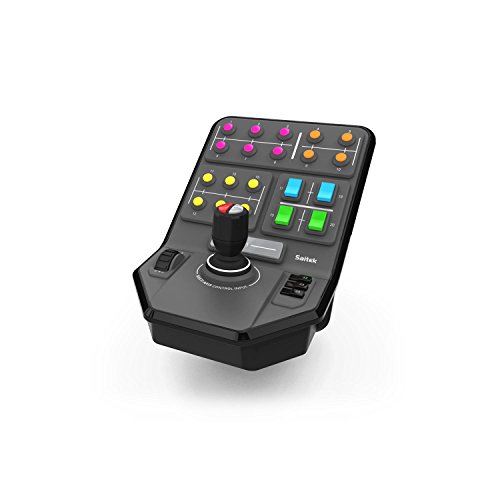
Logitech G PC Farm Sim Vehicle Side Panel

Logitech G USB Pro Flight Radio Panel

Honeycomb Bravo Throttle Quadrant
Inside Each Recommended Option
The Warthog bundle is a serious commitment. A 1:1 replica of the U.S. Air Force A-10C stick and dual throttles, it leans hard into military and combat sim territory. Compared to a yoke-driven setup like the Logitech G bundle below, this is a different league: you trade wheel-style inputs for true center-stick flying with a heavy metal handle.
Expect 19 action buttons, an 8-way point-of-view hat, and a metal hand rest on the throttle unit. The detachable handle and base plate make it equally at home clamped to a desk or mounted in a cockpit rig. You may find the size and weight intimidating in a small room, but the build quality pays off over long sessions.
What Makes Sense
- 1:1 replica of A-10C controls delivers genuine military sim character
- Detachable metal handle and plate allow desk or cockpit mounting
- 19 buttons plus an 8-way POV hat cover most aircraft functions
- Dual-throttle setup handles multi-engine or twin-stick combat layouts
- Bundle includes TFRP rudder pedals for a complete three-axis base
Points To Keep In Mind
- Takes up significant desk or floor space depending on your rig choice
- Overkill for general aviation or airliner-only sims where a yoke feels more natural
Feature Snapshot
Built With In Mind
Combat sim pilots flying DCS modules like the A-10C, F/A-18, or other military aircraft where center-stick control and heavy metal feel matter most.
Skip It When
The Logitech G Pro Flight Yoke System bundle suits general aviation fliers who prefer a wheel-based layout over a center stick.
For pilots who grew up pulling back on a Cessna yoke, this Logitech G bundle feels like home. The yoke and rudder combo is the classic general-aviation starter pack, letting you train muscle memory without diving into center-stick combat. Relative to the Warthog above, the inputs are lighter and the learning curve is shorter.
The yoke brings a POV hat, 14 buttons, and a 3-position mode switch that together offer up to 54 programmable control paths. The included pedals add differential toe brakes for realistic runway braking. Depending on your sim hours per week, this setup can carry you from your first circuit pattern to complex IFR work.
Where It Helps
- Yoke layout matches real-world Cessna and Boeing cockpit geometry
- Up to 54 programmable controls through the yoke alone
- Self-centering rudder pedals with adjustable damping feel predictable
- Differential toe brakes for proper runway braking technique
Trade Offs
- Plastic construction feels light compared to all-metal HOTAS options
- Not ideal for combat sims that expect a center stick with trigger and hat layout
Right Fit For
New simmers and general aviation fans flying Cessna, Piper, or airliner modules in MSFS and X-Plane.
Look Elsewhere When
The Honeycomb Alpha Yoke below offers a sturdier feel and integrated switch panel for pilots who want a more refined GA wheel.
The Honeycomb Alpha is the yoke many simmers upgrade to once the Logitech G setup starts feeling soft. A solid steel shaft running through two linear ball bearings gives it a precise, smooth action across 180 degrees of rotation. The integrated switch panel adds main, alternator, avionics, and light toggles plus a 5-position ignition key, all red-backlit for night flying.
The self-centering mechanism is dampened with no center detent, meaning the yoke glides back to neutral without a clunky click. For most desk setups, the Alpha lands in a sweet spot: sturdier than entry-level plastic yokes, simpler than a full cockpit build. You still need separate rudder pedals, since the bundle here does not include them.
Strengths Worth Knowing
- Steel shaft and ball bearings give a smooth, controlled feel
- Integrated switch panel with red LED backlighting for night flights
- Dampened self-centering with no center detent for clean neutral returns
- 180-degree rotation covers high-wing and low-wing aircraft
Honest Caveats
- Bundled switch panel handles basic electrical functions but not full radio stack
- Requires separate rudder pedals for complete flight control
Key Product Details
Made For
General aviation simmers flying single-engine pistons in MSFS who want a sturdier yoke than the Logitech G option.
A Better Fit Elsewhere
The Logitech G Pro Flight Yoke System bundle makes more sense for newcomers who want rudder pedals in the box at a lower entry cost.
Pedals are where most simmers notice the biggest jump in realism after upgrading from a gamepad. The Logitech G USB PRO Flight Rudder Pedals handle that role for many first-time cockpit builders. Self-centering with adjustable damping, they let you tune the pedal feel to match the aircraft you fly most.
The foot rests adjust to fit a wide range of sizes and use non-slip materials so the pedals stay planted under load. Partial metal construction keeps the unit durable, and the 1.8-meter cable is long enough for most desk and cockpit arrangements. You may find the tension dial a bit fiddly at first, but the included Smart Technology software lets you remap axes for the way you fly.
Well-Handled Touches
- Self-centering action with adjustable damping suits slow GA and fast jet profiles
- Foot rests adjust across a wide size range with non-slip surfaces
- Partial metal construction adds long-term durability over all-plastic units
Where It May Fall Short
- Toe brakes can feel vague for pilots used to differential brake setups
- Older Smart Technology software may need updating on modern Windows builds
Who It Suits Best
Simmers adding rudder control to a yoke setup or budget-conscious home cockpit builders who want a reliable pedal base.
Consider Something Else When
The Thrustmaster TPR Rudder Pedals offer HEART magnetic sensors and a more refined feel for pilots willing to spend more for precision.
The OCTAVI IFR-1 is built for simmers who spend their time buried in approach charts rather than dogfighting. This compact German-made unit groups COM, NAV, FMS, autopilot, and transponder controls into a single desktop box. It solves the problem of clicking through virtual cockpit pop-ups when flying IFR procedures.
You get tactile controls with LED-backlit buttons for low-light use, and the whole thing fits in a small footprint on a desk or side table. For most IFR-rated sim pilots, having a physical radio stack dramatically reduces head-down time and improves situational awareness in busy airspace. It does not replace a yoke or stick, so plan to pair it with another input device.
The Upside
- Combines COM, NAV, FMS, autopilot, and transponder in one unit
- LED-backlit buttons for night and IMC flying practice
- Compact footprint fits a small desk or side-mount setup
Some Limits To Know
- Does not include a yoke, stick, or pedals, so a separate input device is required
- Sim compatibility varies; check plugin support for your specific sim platform
Perfect Match For
IFR-focused simmers practicing instrument procedures in MSFS, X-Plane, or Prepar3D who want physical radio controls.
Swap It Out When
The Logitech G USB Pro Flight Radio Panel below offers a more modular path for simmers who already own other Logitech G panels.
The TPR pedals step up from budget units with two technologies worth understanding. Pendul_r is a suspended mechanism that lets the pedals pivot smoothly without the friction of a traditional hinged design. HEART HallEffect magnetic sensors track pedal position without physical contact, which means accuracy stays consistent over time since there are no pots to wear out.
For pilots who fly taildraggers or want realistic rudder feedback during crosswind landings, the suspended motion feels more natural than sliding plastic. Compared to the Logitech G USB PRO pedals above, the TPR offers a smoother, more premium action at a higher cost. You may find the lack of dedicated toe brakes limiting if you fly complex airliners.
What Works In Its Favor
- Pendul_r suspension delivers smooth, friction-free pedal motion
- HEART magnetic sensors avoid contact wear for long-term accuracy
- Sturdy base stays planted under aggressive rudder inputs
Practical Considerations
- No integrated toe brakes for differential braking on airliner runs
- Heavier base may require a fixed mounting position on the floor or rig
Quick Facts
Whose Shelf It Belongs On
GA and combat sim pilots upgrading from entry-level pedals who want smoother rudder control for crosswind work.
Another Choice May Suit
The Logitech G USB PRO Flight Rudder Pedals include toe brakes for airliner simmers who need differential braking.
Strictly a flight sim pick? No, but worth including for simmers who mix genres. The Farm Sim Vehicle Side Panel is a six-axis loader stick plus 37 programmable buttons designed for heavy equipment and farming sims. It works with any sim that accepts generic joystick input, which makes it a fun add-on for DCS helicopter modules or the occasional bush-plane landing in MSFS.
The set-and-forget cruise dial and durable screw-thread clamp keep the panel locked to your desk during long sessions. Depending on your genre mix, this is a niche tool rather than a core flight purchase. For most pilots, traditional yokes and sticks deliver more meaningful realism gains.
Key Advantages
- Six-axis loader stick handles complex machinery like logging cranes
- 37 programmable buttons cover a wide range of vehicle functions
- Durable screw-thread clamp keeps the panel fixed during heavy use
Less Ideal Details
- Built for farm sims first, so flight realism gains are limited
- Takes up desk space that could go toward a yoke or throttle quadrant
Who Will Love This
Simmers who play Farming Simulator or heavy equipment games alongside flight sims and want one panel to handle both.
Reach For A Different Pick When
The Honeycomb Bravo Throttle Quadrant is a better fit for pilots who spend most of their time in airliner or GA sims.
The Pro Flight Radio Panel brings real COM and NAV stack hardware to your desk. Built around physical knobs and twin LCD displays, it handles COM1, COM2, NAV1, NAV2, DME, ADF, and transponder functions in real time with FSX, X-Plane, and Prepar3D. Multiple panels can be daisy-chained, which makes it a building block for larger cockpit projects.
For airliner simmers, clicking through virtual radios is one of the most immersion-breaking tasks. Having physical controls means you can tune a frequency, set a transponder code, and read the active and standby frequencies at a glance. You may find the LCD readouts small in low light, but the integration is solid for the supported sims.
Positive Takeaways
- Dedicated knobs and displays for COM, NAV, DME, ADF, and transponder
- Works in real time with FSX, X-Plane, and Prepar3D
- Multiple panels can be stacked for a full home cockpit radio stack
Details To Watch
- LCD readouts can be hard to read in dim room lighting
- Native plugin support is strongest on older sim platforms
Core Details
Best Suited To
Airline and IFR simmers building a multi-panel home cockpit who want physical radio controls over on-screen pop-ups.
Not Your Match When
The OCTAVI IFR-1 cockpit above is a more compact all-in-one alternative for simmers who want radio controls in a single box.
The Bravo is the other half of the Honeycomb ecosystem, and on its own it does a lot. The configurable throttle setup handles everything from a single-engine Cessna to a four-engine airliner by adding or removing throttle levers. Built-in gear and flap levers, a trim wheel, and an autopilot panel round out the unit.
The annunciator panel uses seven two-way programmable switches and 14 warning lights, which gives you realistic caution and warning feedback during engine failures or system faults. The gear lever includes red and green LED indicators so you can confirm gear state without checking the virtual cockpit. Pair it with a yoke or stick and pedals for a complete desktop rig.
Notable Gains
- Configurable throttle from single to four-engine aircraft
- Built-in gear, flap, trim, and autopilot controls in one unit
- Annunciator panel with 14 warning lights for realistic engine feedback
- Red and green LEDs on the gear lever confirm gear position at a glance
Potential Drawbacks
- Takes up significant desk real estate alongside a yoke or stick
- Switching between single and multi-engine configs requires physical lever changes
Who Should Grab It
Multi-engine and airliner simmers who want one throttle unit that adapts to anything from a twin Cessna to a Boeing-style jet.
Where Another Pick Suits Better
The ThrustMaster Hotas Warthog bundle covers throttle plus stick and pedals for combat pilots who want everything in one kit.
What Matters Before Choosing Your Flight Setup
The right control layout depends heavily on the aircraft you fly most. Combat sim pilots thrive with center sticks because military aircraft use that geometry, and a HOTAS setup like the Warthog bundle places every weapon, view, and engine control on or near the stick. General aviation fans, on the other hand, find yokes more intuitive because that matches what they see in real Cessna and Piper cockpits.
Build quality shows up where you touch the device every session. Metal shafts, ball bearings, and dampened centering mechanisms last longer and feel more consistent than all-plastic units. For most home pilots, spending on smoother mechanics pays off over multiple years of use, while entry-level plastic can develop wobble or play.
Foot control matters more than new simmers expect. Self-centering rudder pedals with adjustable damping let you match the feel of a slow Cessna or a fast jet, and toe brakes handle realistic runway braking. Even a simple pedal upgrade like the Logitech G USB PRO transforms crosswind landings and taxi work.
Don’t forget sim compatibility. Hardware from Thrustmaster, Logitech G, and Honeycomb generally works across MSFS, X-Plane, and Prepar3D with native or community plugins, but older Logitech G panels can be finicky on the newest sim versions. Always check current plugin support before buying radio panels or specialty controllers.
Common Buying Traps and When Premium Pays Off
Mistakes Worth Dodging
Buying a HOTAS bundle for a GA-only sim leaves you with the wrong control layout for the aircraft you actually fly. Many newcomers grab a Warthog because it looks serious, then spend months wishing they had a yoke. Match the controller type to your most-flown aircraft before matching it to your budget.
The Case For Spending Up
Premium hardware earns its keep through sensor quality, build materials, and longevity. HEART magnetic sensors on the TPR pedals avoid contact wear, steel shafts on the Honeycomb Alpha reduce wobble, and modular panels from Logitech G scale into larger cockpit builds. For most simmers, the upgrade makes sense once flight hours cross a few dozen per month.
Frequently Asked Questions
Do I need rudder pedals for PC flight sim?
Rudder pedals add realistic yaw control and toe braking, which matters for crosswind landings, taildraggers, and coordinated turns. For casual GA flying, you can skip them, but most simmers regret not adding pedals within the first hundred hours.
Is a HOTAS or a yoke better for beginners?
A yoke feels more natural for general aviation aircraft like Cessnas and Pipers, while a HOTAS suits combat and military sims. Match the controller to the aircraft you fly most rather than starting with the most expensive option.
Will these controllers work with Microsoft Flight Simulator?
Most current Thrustmaster, Logitech G, and Honeycomb products work with MSFS through native support or community plugins. Radio panels and specialty units may need third-party configuration tools, so check the manufacturer’s compatibility list before buying.
Can I mix brands in one cockpit setup?
Yes, mixing brands is common. A Honeycomb yoke plus Thrustmaster pedals plus a Logitech G radio panel is a typical combination, though you may need separate plugins for each device rather than a unified configuration tool.
How much desk space do I need for a full setup?
A full HOTAS rig with pedals and a throttle quadrant can occupy a 4-by-3-foot area, while a basic yoke and pedal setup fits on a standard desk. Wall mounts and under-desk clamps help in tighter spaces.
Closing Thoughts
The best flight sim setup is the one that matches the flying you actually do. Combat pilots will feel the most pull toward the Warthog bundle, while GA simmers typically find their rhythm with a Honeycomb or Logitech G yoke plus pedals. Start with the inputs you need most, add panels as your sim hours grow, and your desktop will quietly turn into a real-feeling cockpit.