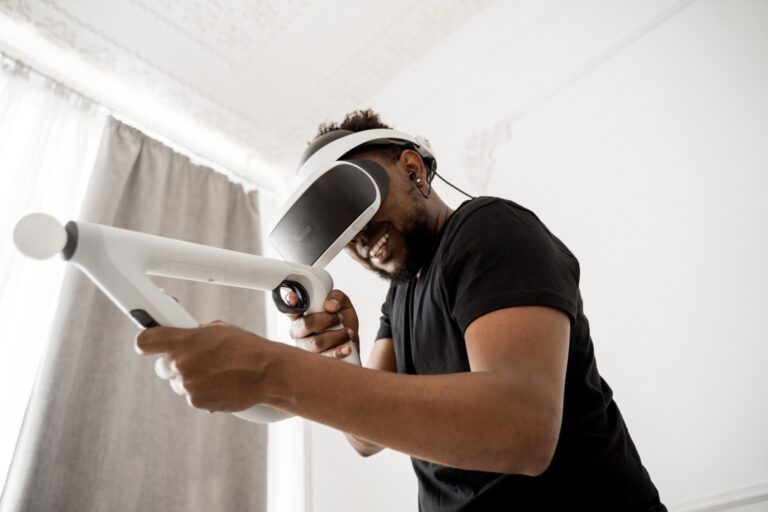

A 50-millisecond round-trip delay between a controller press and its on-screen result frames the entire experience, turning split-second decisions into guesswork. Even a 10–20 ms jump can disrupt flick shots, dodge timings, and rhythm-game combos, especially when the display’s refresh cycle doesn’t line up with the moment your input arrives. Most modern gaming setups sit between 1 ms and 100 ms of total delay, so the gap between a sluggish feel and a sharp one often comes down to a handful of stages in the chain.
This guide covers how every link in the input chain contributes to on-screen delay, from peripherals and drivers to the monitor’s refresh cycle, helping competitive players spot where their setup is losing precious milliseconds.
The Chain of Delay Between Keypress and Screen
Every keypress passes through at least four stages before it shows up as motion on a monitor, and each stage adds its own slice of measurable delay. The peripheral polls its sensors, the USB or wireless receiver processes the report, the CPU and GPU render the next frame, and the display holds that frame until the panel can refresh. The sum of every slice, called end-to-end latency, is the number that actually reaches your eyes.
Because those stages stack, a single fast component never guarantees a responsive system on its own. A 1000 Hz mouse feeding a 60 Hz monitor that buffers frames will still feel slow, since the display holds back the result. Competitive players generally target total end-to-end latency below 15 ms, a threshold that requires every link in the chain to be tuned rather than just one.
Where the milliseconds actually hide
The largest contributors in most setups sit at the display and the render queue, not the peripherals. A 60 Hz monitor alone adds roughly 16.7 ms of unavoidable wait between frames, while a 240 Hz panel drops that floor to about 4.2 ms. Pre-rendered frame buffers, which let the engine work one or more frames ahead of the GPU, can double or triple the gap between your input and its visual result.
Because frame timing is what ultimately surfaces that delay, it deserves a closer look before moving on.
Why Refresh Rate and Frame Timing Set the Floor
Refresh rate caps how often the display can show a new frame, and that cap creates a built-in delay no amount of peripheral tuning can erase. A 60 Hz panel updates only every 16.7 ms, so an instant input must wait, on average, half a frame cycle to appear. A 240 Hz panel refreshes every 4.2 ms, slicing that wait by roughly 75%.
Frame pacing matters as much as raw frame rate, because uneven delivery produces stutter that the brain reads as added lag. A card that pushes 144 frames per second with spiky delivery often feels looser than a steady 100 fps output, since the visual feedback no longer matches your timing. Smooth frame pacing at a lower rate typically feels tighter than a higher rate with visible spikes and dips.
The V-Sync tradeoff
V-Sync holds each rendered frame in a buffer until the display’s next refresh window, a synchronization step that removes tearing yet typically adds a full refresh cycle of delay to player inputs. Modern alternatives like NVIDIA G-Sync and AMD FreeSync replace V-Sync with adaptive sync, matching the display’s refresh to the GPU’s frame delivery and preserving smoothness without the buffer penalty. Running a high-end GPU on a 60 Hz monitor leaves latency reduction on the table, since the GPU’s extra power never shortens the wait between frames.
| Refresh rate | Frame interval | Average input-to-display floor |
|---|---|---|
| 60 Hz | 16.7 ms | ~8.3 ms wait + render + peripheral |
| 144 Hz | 6.9 ms | ~3.5 ms wait + render + peripheral |
| 240 Hz | 4.2 ms | ~2.1 ms wait + render + peripheral |
| 360 Hz | 2.8 ms | ~1.4 ms wait + render + peripheral |
Input Lag Versus Response Time, Frame Rate, and Network Ping
Four distinct measurements travel the same input-to-screen path, yet input lag, response time, frame rate, and network ping each capture a different stage of that journey. Response time, usually listed as GtG (gray-to-gray), measures how quickly a pixel changes color and is independent of input lag. A panel with 1 ms GtG can still feel sluggish if its internal processing pipeline adds 20 ms before the frame ever reaches the pixels.
Frame rate and frame time are upstream contributors, not the same as the input lag you feel at the controls. A drop in either amplifies perceived delay by stretching the gap between updates, but the root cause sits further down the chain. Network ping is a parallel delay that affects what you see from other players, like hit registration or enemy positions, not how quickly your own inputs reach the screen.
Why mixing these up costs you time and money
Chasing the wrong fix is the most common reason gamers buy a new monitor and feel no real improvement. A 1 ms GtG panel with poor internal processing can lose to a 5 ms GtG panel with a clean pipeline, which is why measured numbers beat spec-sheet claims every time. Measured input lag data from RTINGS and TFT Central makes that comparison possible for specific monitor models.
Those published numbers only tell part of the story, since the keyboard, mouse, or controller you hold can quietly undo a monitor’s advantage.
| Metric | What it measures | Where it lives in the chain |
|---|---|---|
| Input lag | Time from input to visible result | Full system, end to end |
| Response time (GtG) | Pixel color transition speed | Display panel only |
| Frame rate | Frames rendered per second | GPU and engine output |
| Network ping | Round-trip to game server | Network path, not local chain |
Peripherals and How They Add or Remove Milliseconds
Peripherals sit at the very start of the chain, so any delay they introduce lands on top of every other stage. A 1000 Hz mouse polls its sensor every 1 ms, compared to 8 ms on a 125 Hz mouse, which removes a full 7 ms of sampling delay before the signal even reaches the CPU. That gap matters more in fast-twitch genres like FPS and fighting games than in slower-paced strategy or RPG titles.
Modern 2.4 GHz wireless peripherals have closed the historical 4–8 ms gap that once made wired gear the default for serious players. Premium wireless mice and keyboards now match wired latency within a fraction of a millisecond, while older Bluetooth controllers and headsets can still introduce noticeable lag. The wireless protocol, the receiver’s polling rate, and the device’s internal debounce settings each contribute small but stackable delays.
Less obvious peripheral contributors
- Keyboard scan rate: the controller chip reads each key at a set interval, which sets a floor on input timing.
- Debounce settings: aggressive debounce can add several milliseconds of artificial delay to prevent double-presses.
- Bluetooth vs wired pads: wireless mode often shows a 4–8 ms jump, which is why competitive console players still use wired controllers.
- USB port quality: a slow hub or shared bus can throttle a high-polling mouse without any visible warning.
Software and Driver-Level Latency Reducers
Software fixes often deliver the largest gains because they attack the render queue, where most of the delay actually lives. NVIDIA Reflex and AMD Anti-Lag shorten that queue by aligning CPU frame preparation with GPU rendering, so the engine stops working far ahead of the moment you need the result. Benchmarks from outlets like Blur Busters show measurable improvements when Reflex is enabled in supported competitive titles.
Game-by-game settings, such as the pre-rendered frames cap in NVIDIA’s control panel, also move the needle. The default of “1” lets the engine queue one frame ahead, while “0” forces the engine to wait for your input before starting the next frame, cutting render-queue delay at a small cost to frame pacing. Fullscreen exclusive mode changes how the operating system handles present calls; borderless windowed mode often adds several milliseconds because the composition layer sits between the game and the display.
Even with ideal drivers, the operating system itself can reintroduce delay right before pixels reach the panel.
Background processes and overlays
- Overlay interception: Discord, Steam, GeForce Experience, and screen recorders can quietly add milliseconds by intercepting frames.
- Background CPU load: browser tabs, antivirus scans, and RGB software can steal CPU time and stretch frame delivery.
- Frame limiter tuning: a cap just below the display’s refresh rate, like 143 fps on a 144 Hz monitor, can stabilize pacing but should be tested individually.
Disable V-Sync, cap pre-rendered frames to 1, and enable Reflex or Anti-Lag before considering a hardware upgrade. Most setups see a larger drop in latency from those three changes than from swapping a peripheral.
Measuring Total System Latency From End to End
Guessing where the lag lives almost always leads to upgrading the wrong component. Dedicated tools like the NVIDIA LDAT (Latency Display Analysis Tool) and the Open Source Response Time Tool (OSRTT) measure the full chain by detecting a physical input, such as a mouse click or a light sensor flash, and timing how long it takes to appear on screen. High-speed camera methods, used by reviewers at RTINGS, produce a similar end-to-end number but require specialized equipment.
Built-in benchmarks and frame-time overlays offer a practical starting point for anyone without dedicated hardware. Tools like FrameView, PresentMon, and MSI Afterburner’s on-screen display show frame pacing and 1% / 0.1% lows, which point to stutter even when average frame rate looks healthy. Visual tests, like the click-to-photon tests on Blur Busters, give a rough end-to-end reading using a high-refresh camera or a smartphone slow-motion mode.
Baseline first, then optimize
Establishing a baseline measurement before changing anything is the only way to confirm a fix actually worked. Capture the current total latency, record the settings in use, and change one variable at a time. Once measured, the largest contributor almost always points to the highest-leverage upgrade, whether that is swapping a 60 Hz monitor, disabling V-Sync, or replacing a wireless controller’s Bluetooth link with a wired one.
Putting It Together: A Practical Path to Lower Latency
The fastest path to lower latency starts with a chain audit, since you can’t fix a bottleneck you haven’t identified. List every link, from mouse polling rate to monitor refresh rate, and identify the single largest bottleneck first. In most setups, that bottleneck lives at the display end, not the peripheral end, which is why a 144 Hz monitor often delivers a bigger felt improvement than a new mouse.
Adjust software settings before spending money, because most of the delay sits in code paths rather than hardware. Disable V-Sync, lower pre-rendered frames to 1, enable Reflex or Anti-Lag if the game supports it, and run the game in fullscreen exclusive mode. Match peripheral polling, GPU frame output, and monitor refresh rate so no single link lags behind the others, then re-measure after each change to confirm real gains rather than perceived ones.
A short checklist for the next session
- Audit the chain: list polling rate, render queue, and refresh rate to find the slowest link.
- Tune software first: disable V-Sync, cap pre-rendered frames at 1, enable Reflex or Anti-Lag.
- Match the system: pair high-refresh monitors with GPUs that can sustain the frame rate.
- Switch display modes: use fullscreen exclusive instead of borderless windowed.
- Re-measure after each change: confirm gains with a latency tool, not just a feeling.
- Stop at your target: once you hit ~15 ms total, further tuning yields diminishing returns.
The Big Picture
Input lag behaves like a chain, and the chain only feels as fast as its slowest link. Most of the delay lives in the display and the render queue, not in the peripherals, which is why software tuning often beats hardware upgrades. Measure the full system, fix the largest contributor first, and stop optimizing once the chain hits a target that matches your goals, because chasing single-digit millisecond gains past that point rarely changes how the game actually plays.
FAQ
What is a good input lag for gaming?
Casual players usually cannot feel anything below 40 ms, while competitive players target a total end-to-end latency under 15 ms. Esports professionals often push for 10 ms or lower, which requires a high-refresh monitor, low render-queue settings, and matched peripherals working together.
Does input lag matter for casual gaming?
It matters less in single-player and slower genres, but anything above 50 ms of total latency can still feel noticeably sluggish in platformers, action RPGs, and rhythm games. Casual setups benefit from enabling game mode on the display, switching to fullscreen exclusive, and disabling V-Sync.
How do I check my monitor’s input lag?
Review sites like RTINGS and TFT Central publish measured input lag for most modern monitors, broken down by resolution and refresh rate. For a real-world check, the NVIDIA LDAT or the open-source OSRTT measures total system latency from a physical input to a visible pixel change.
Is input lag or response time more important for gaming?
Input lag affects how quickly your actions appear, while response time affects how cleanly moving objects render. For competitive play, lower input lag usually matters more, but high response time can introduce ghosting that hides fast targets, so a balance of both delivers the cleanest competitive experience.
Can a controller cause input lag?
Yes, particularly over Bluetooth, which can add 4–8 ms compared to a wired connection. A worn-out analog stick, a low battery, or wireless interference can also stretch that delay further, which is why many competitive console players still use wired pads.
How much input lag is noticeable?
Most people can detect a change of around 15–20 ms when two systems are compared side by side. Trained players often pick up on smaller shifts, especially in fast-twitch genres where a single frame at 60 Hz (16.7 ms) can decide a fight.